

Scheduled audits
Damdit can audit a project on a schedule and tell you when something needs attention. Scheduled audits run with the background runner, so turn it on first.
Set up a schedule
Section titled “Set up a schedule”- Open the project’s Project settings → Automation.
- Turn on Run scheduled audits.
- Choose the Frequency: Daily, Weekly or Monthly, and the day and hour.
- Choose Save.
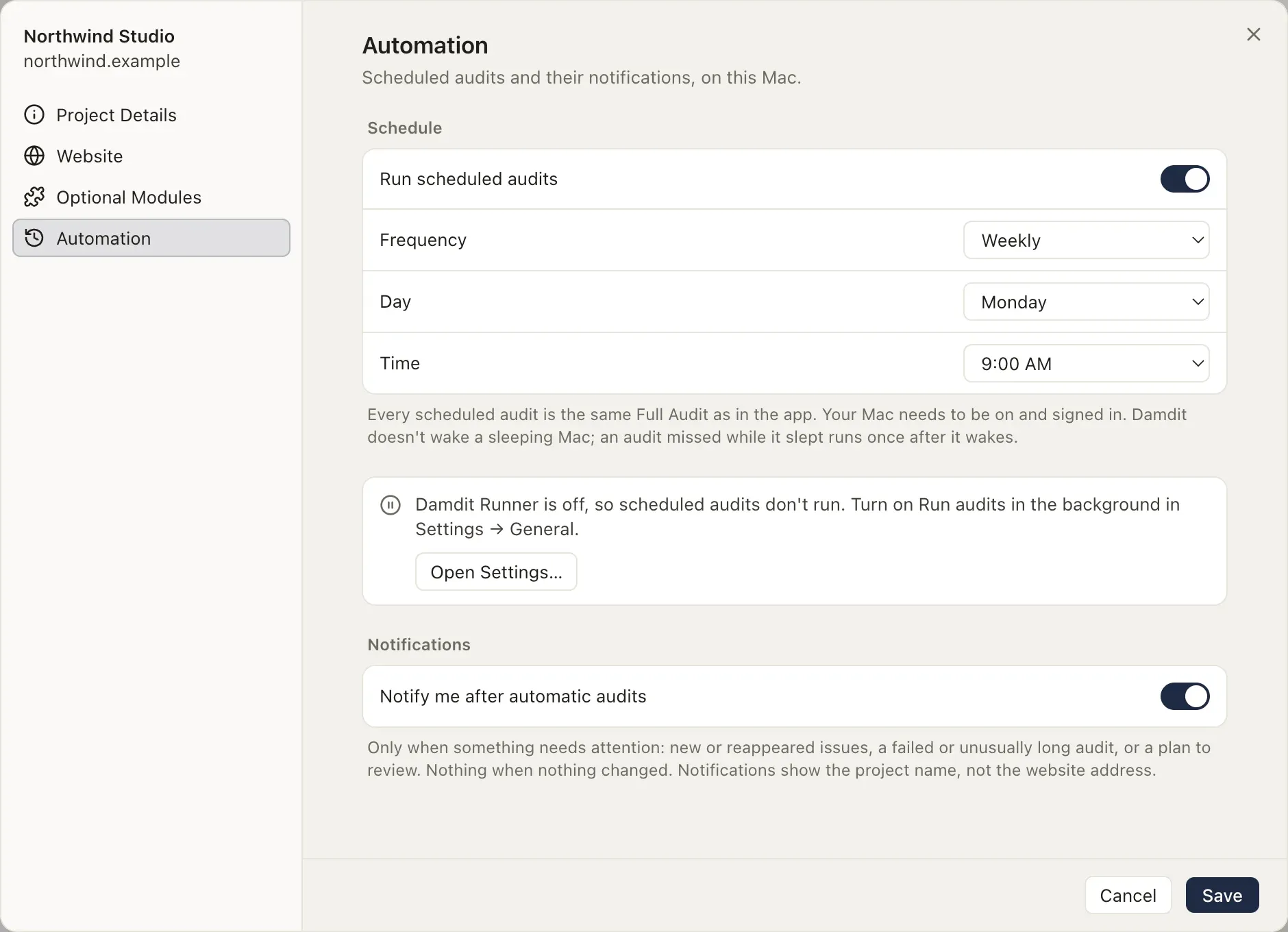
Next audit shows when the next one runs.
A scheduled audit is the same Full Audit as one you start in the app. It audits the project’s default address.
Before the first scheduled audit
Section titled “Before the first scheduled audit”Damdit audits automatically only an address you approved. Run one audit of the project in the app and choose Start audit after reviewing the plan; scheduled audits begin after that. If you change the website’s address, scheduled audits pause until you approve an audit of the new address the same way.
When the computer is asleep or off
Section titled “When the computer is asleep or off”Your computer needs to be on and you need to be logged in. An audit missed while the computer slept or was off runs once when it wakes; missed audits don’t pile up. On a Mac, Damdit can wake it for scheduled audits.
Only one audit runs at a time. Audits you start in the app go first, then audits from AI tools and the command line, then scheduled ones. A scheduled audit that can’t start within 12 hours is skipped.
Notifications
Section titled “Notifications”With Notify me after automatic audits on, Damdit notifies you only when something needs attention:
- new or reappeared issues since the last audit,
- an audit that failed or takes unusually long,
- an audit plan to review, for example after the address changed.
Nothing is sent when nothing changed. Notifications show the project’s name, not the website’s address. Click one to open the audit.