

Reports
Reports (⌘6, Ctrl+6) turns one audit into a document. Every report you create stays in the list, so you can open, save or make it again later.
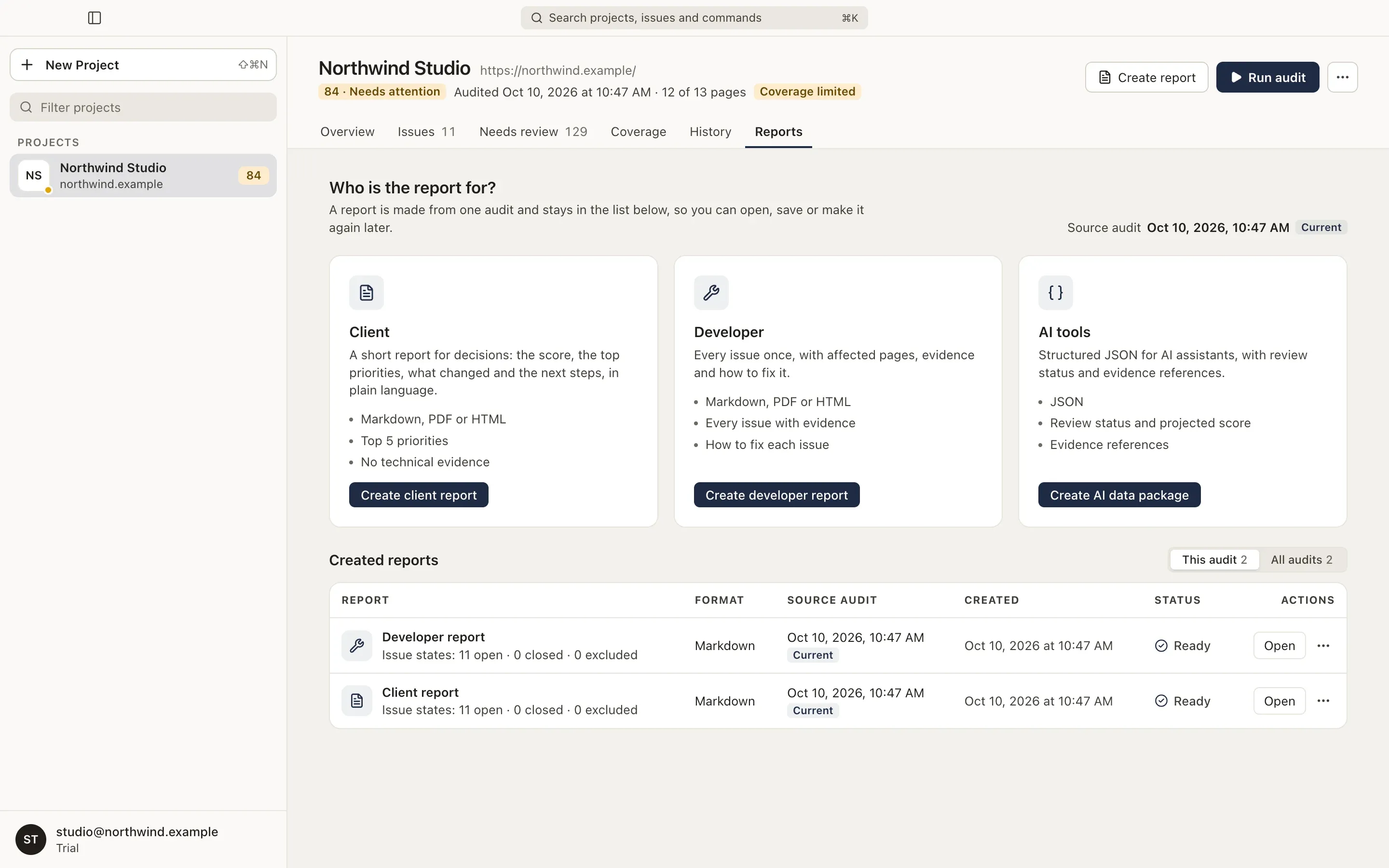
Choose who it’s for
Section titled “Choose who it’s for”| Report | For | Contents | Formats |
|---|---|---|---|
| Client | Decisions | The score, the top 5 priorities, what changed and the next steps, in plain language, without technical evidence | Markdown, PDF, HTML |
| Developer | The people who fix things | Every issue once, with the affected pages, evidence and how to fix it | Markdown, PDF, HTML |
| AI tools | AI assistants | Every finding as structured JSON, with review status and evidence references | JSON |
When the project uses PageSpeed Insights or Search Console, every report also says what they returned beyond the issues: how real Chrome visitors experienced the site over the last six months (Client: one line per device; Developer and AI: the values and trend per metric), how many inspected pages Google indexes and which it does not, and how many PageSpeed values were confirmed by measuring three times. This is information and does not change the score.
Create a report
Section titled “Create a report”Choose Create client report, Create developer report or Create AI data package. The sheet shows what the report will include.
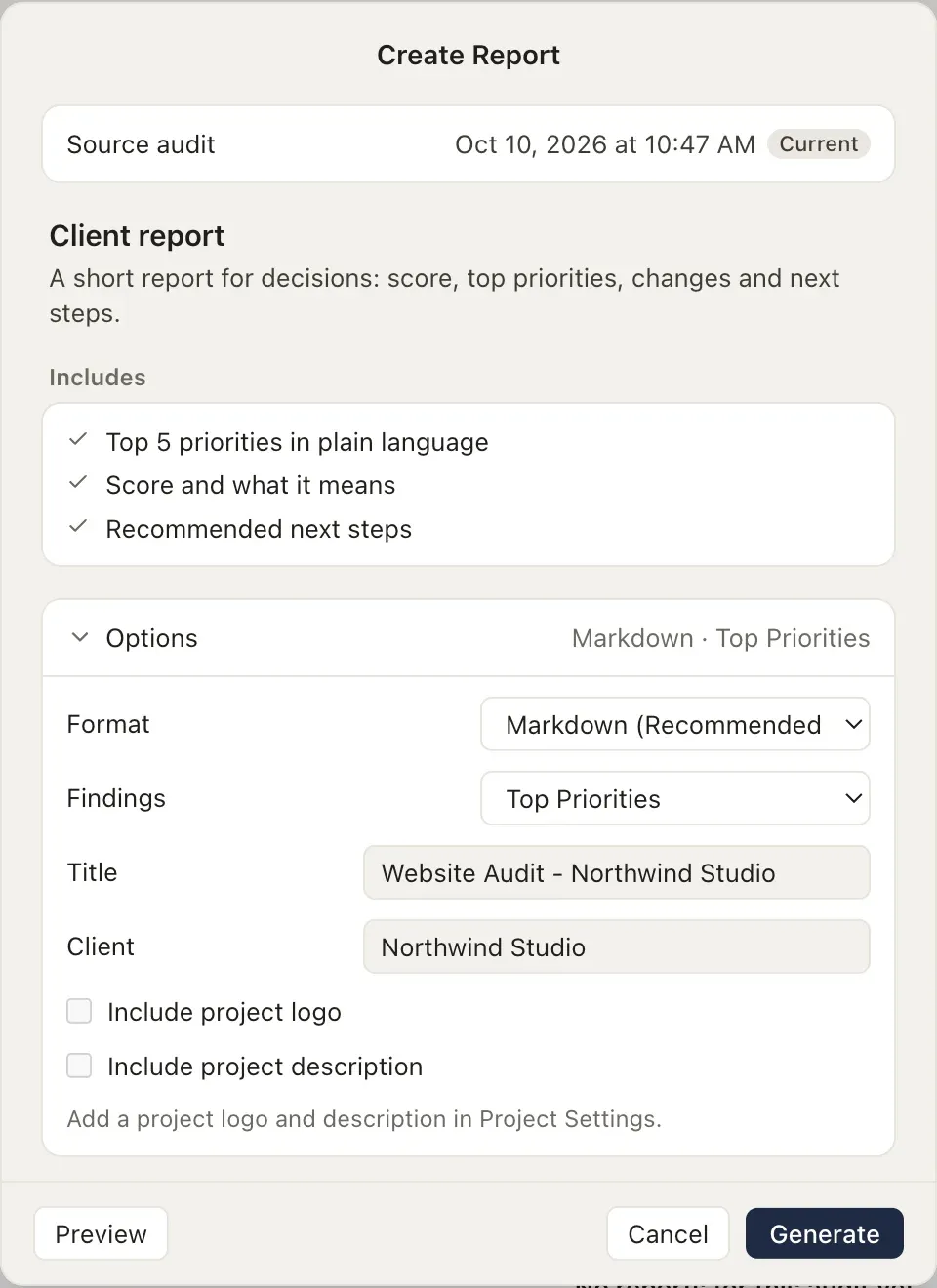
Under Options you can change:
- Format: Markdown, PDF or HTML.
- Findings: the top priorities or every finding in the audit.
- Title and Client (or Recipient).
- Include project logo (PDF and HTML) and Include project description. Add both in Project settings.
Preview opens a temporary copy that isn’t added to Reports. Generate creates the report; you can close the sheet while it’s being made.
If you marked issues as Not relevant, the report says so and shows the score without them next to the measured score.
A report is made from the audit you’re looking at. Reports of an older audit say which audit they describe.
Created reports
Section titled “Created reports”The list shows each report’s format, its source audit, when it was created and its status: Generating, Ready, Failed or File missing. Switch between This audit and All audits.
For each report you can Open it, Save As… a copy, show it in Finder (Explorer, or your file manager), Generate Again with the current issue statuses, or Delete… it. Deleting a report removes its file; the audit and copies you saved elsewhere stay.
Where reports are saved
Section titled “Where reports are saved”Reports are saved in Damdit’s data folder, in exports. Use Save As… to keep a copy somewhere else.