

Run your first audit
Damdit runs one Full Audit: it finds the pages of a website, loads each of them in a browser and checks SEO, accessibility, links, security, content and performance. You review the plan before anything starts.
1. Enter the website
Section titled “1. Enter the website”When you open Damdit for the first time, it asks for one thing: the website’s address.
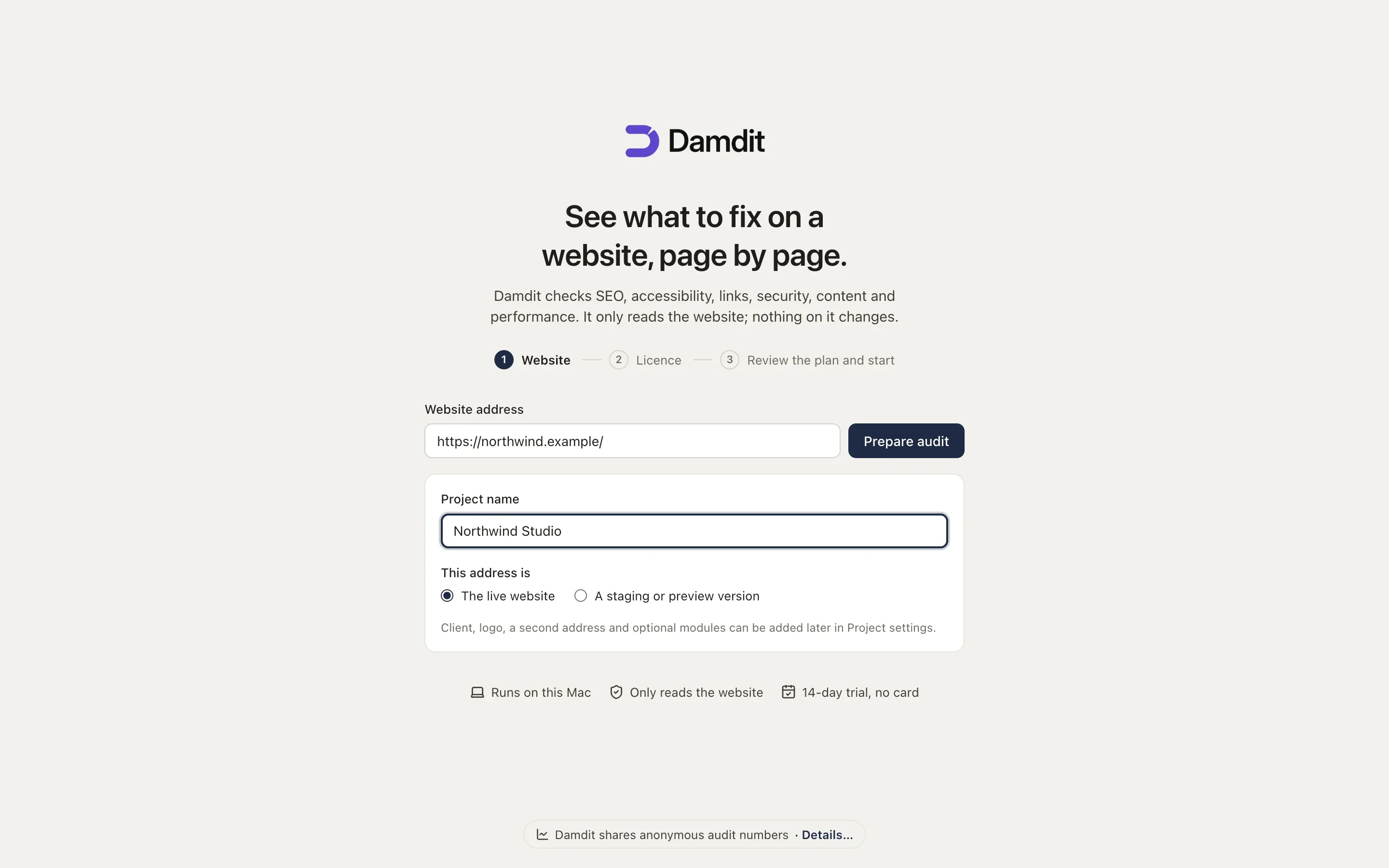
- Type the address, for example
https://example.com. If you leave outhttps://, Damdit adds it. - Optionally give the project a name. Without one, Damdit uses the domain.
- Choose whether the address is The live website or A staging or preview version.
- Choose Prepare audit.
The address must use HTTPS. You can add a second address, a local address on your computer, a logo and optional connections later in Project settings.
To add another website later, choose New Project in the sidebar or press ⇧⌘N (Ctrl+Shift+N).
If the address already belongs to a project, Damdit offers Open Existing Project, so the audits of one website stay together, or Create Separate Project.
2. Damdit prepares the audit plan
Section titled “2. Damdit prepares the audit plan”Damdit finds the website’s pages from the start page, the sitemap and links, and checks which evidence is available. The number of pages found grows as it goes.
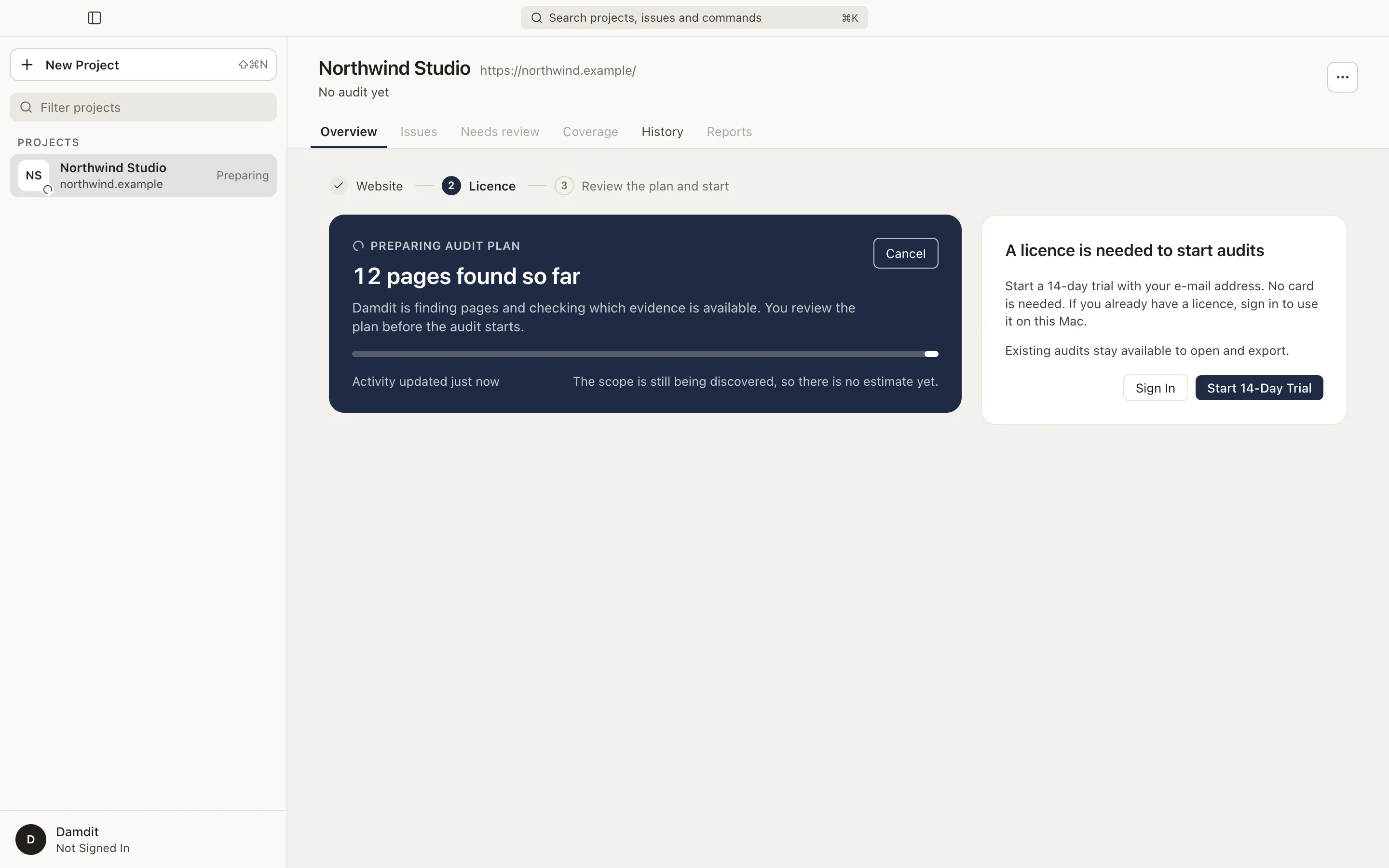
You can switch to another project while it prepares. Cancel stops it.
If you don’t have a licence yet, Damdit asks you to start a 14-day trial or sign in while it prepares. See Licence and trial.
3. Review the plan and start
Section titled “3. Review the plan and start”When the plan is ready, Damdit shows what the audit will cover:
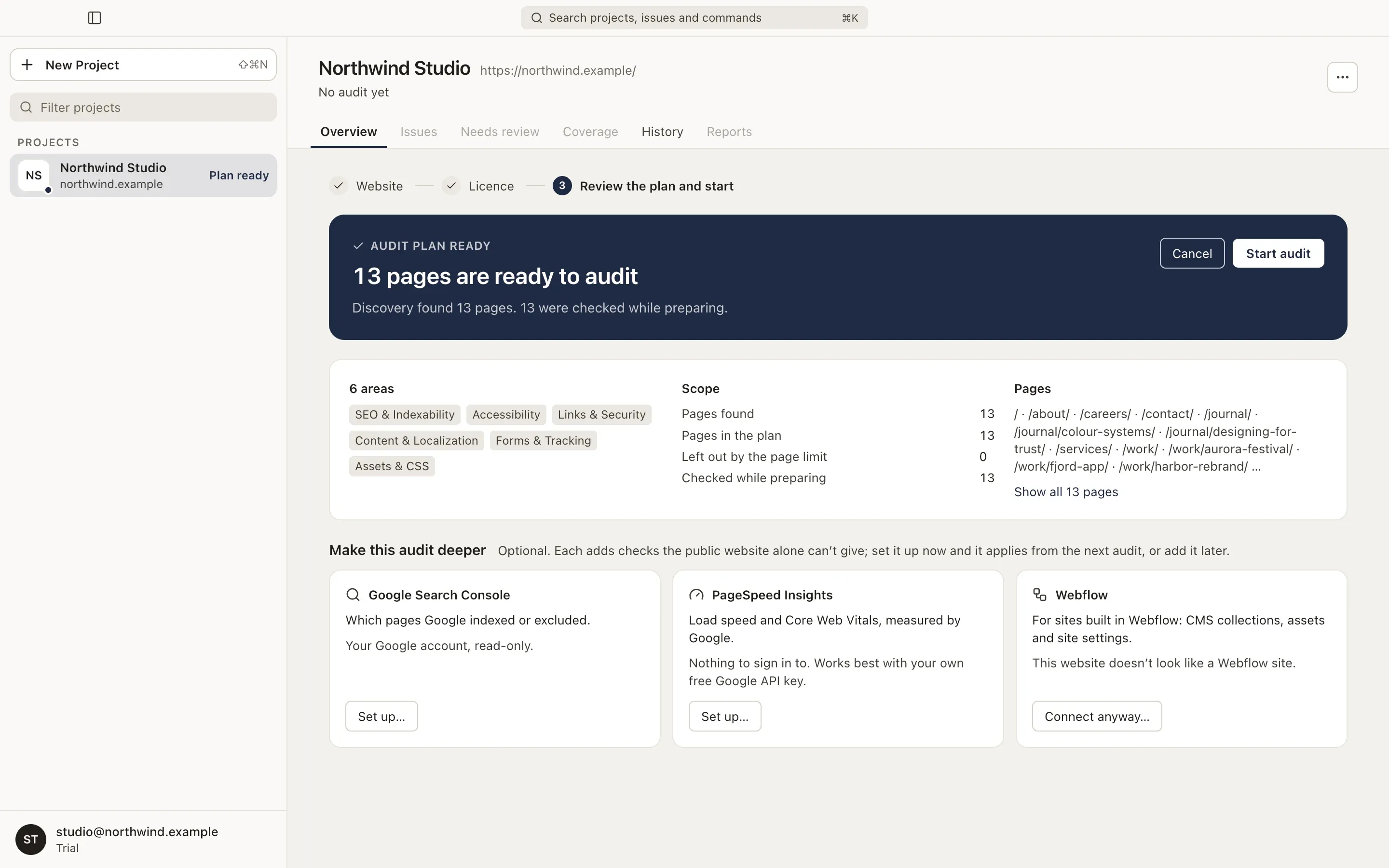
- Scope: how many pages were found and how many are in the plan.
- Areas: what the audit will check. An area marked Limited can’t be checked completely, for example Performance without PageSpeed Insights.
- Pages: the pages in the plan.
- Make this audit deeper: optional connections to Google Search Console, PageSpeed Insights and Webflow. You can set them up now or later; they apply from the next audit.
A website with more than 500 pages is audited on 500 of them, chosen so every section is covered. See The page limit.
Choose Start audit, or press Return.
4. While the audit runs
Section titled “4. While the audit runs”The run shows each step and how many pages are done.
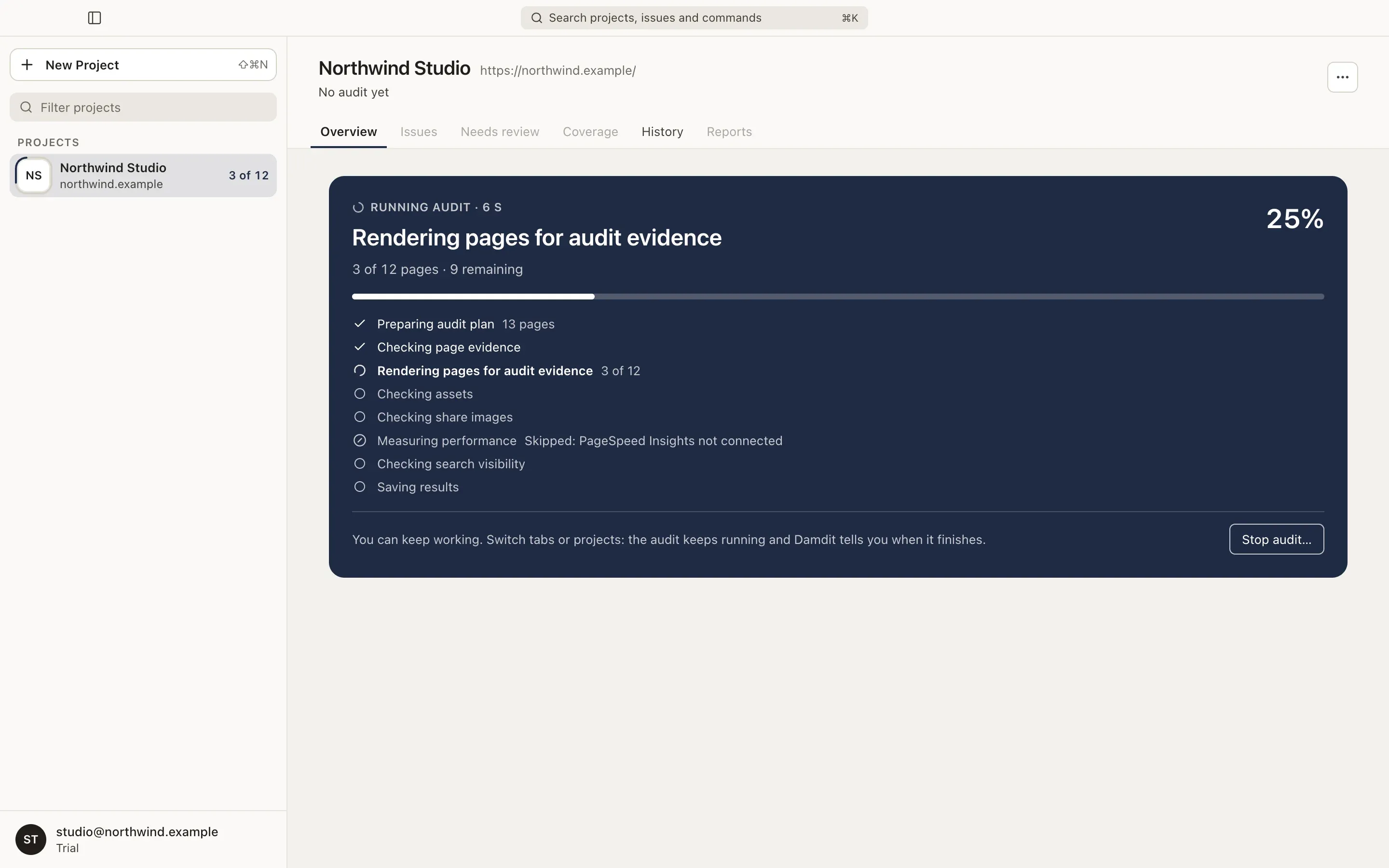
You can keep working: switch tabs or projects and the audit keeps running. When Damdit isn’t in front, a notification tells you when the audit finishes. Stop audit… stops it; a stopped audit is kept in History as Cancelled and doesn’t replace your current results.
A small website takes about a minute. A site with a few hundred pages can take 10–30 minutes.
5. Read the result
Section titled “5. Read the result”When the audit finishes, Damdit shows the score, the number of pages audited and issues found, and anything it could not measure.
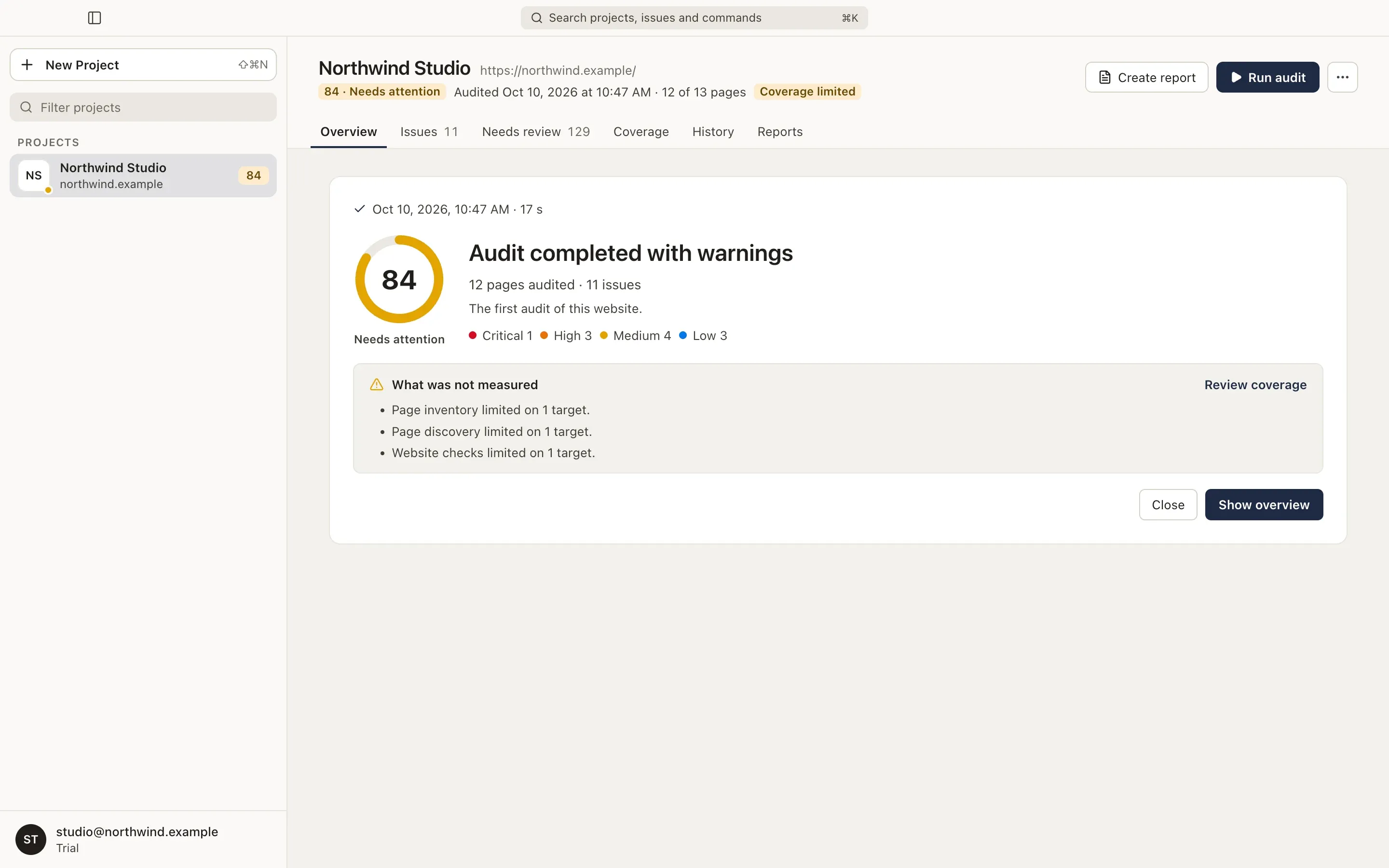
Choose Show overview to open the project’s Overview, which tells you what to fix first.
Next steps
Section titled “Next steps”- Read the Overview and open the first issue.
- Check what the audit covered before you share results.
- Create a report for a client or a developer.
- Schedule audits so Damdit audits the site every week.