

Coverage
An audit can only report problems on pages and in areas it actually measured. Coverage (⌘4, Ctrl+4) shows exactly that, so you know how far to trust the result. A gap is never a clean result: no issues in an area that wasn’t measured doesn’t mean the area is fine.
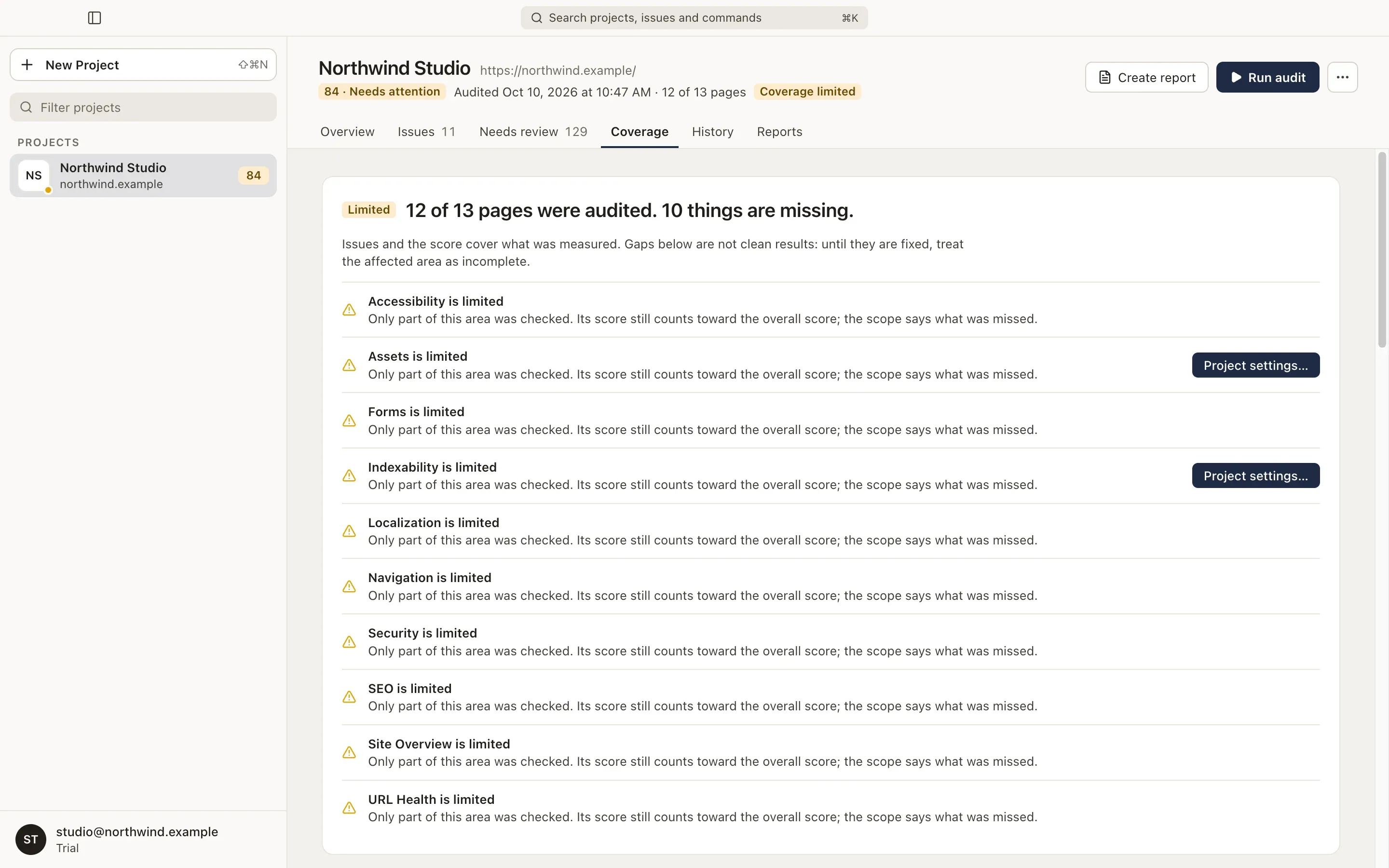
Verdict
Section titled “Verdict”The badge sums up the audit’s coverage:
| Status | Meaning |
|---|---|
| Complete | Every planned page and area was measured. |
| Limited | Part of the website or an area couldn’t be measured completely. |
| Unavailable | Coverage information is missing for this audit. |
| Failed | The audit couldn’t measure the website. |
Below it, each gap is listed with what to do about it:
- Pages left out by the page limit, with See which pages. See The page limit.
- An area that is limited or was not measured, with its reason and, where it helps, Project settings… to connect the missing source.
- Planned pages that were not audited, for example pages that didn’t respond. Their issues are unknown, not absent.
- Check results with incomplete evidence, with Show in Needs review. They are left out of issues and the score instead of being counted as passed.
What the audit reached
Section titled “What the audit reached”Four steps show where pages were lost, if anywhere:
- Addresses found from the start address, the sitemap and links. Addresses that only redirect to another page are counted here.
- Pages planned for the audit.
- Checked over HTTP: pages that answered successfully.
- Rendered and audited: pages loaded in a browser and checked in every area.
How completely each area was checked, limited areas first:
| Coverage | Meaning |
|---|---|
| Complete | Checked on every planned page. |
| Limited | Checked in part. The reason is shown. |
| Not measured | Couldn’t be checked at all. |
| Review only | Produces observations for Needs review, never a score. |
| Not connected | Needs a connection: PageSpeed Insights for Performance, Webflow for CMS data. Connect… opens Project settings. |
| Not applicable, Not run | Doesn’t apply to this project. |
The last column shows the area’s issues; choose the number to see them.
Below the areas, Real-user trend says whether the real-user experience trend came back and what to do when it didn’t. It is information only and never changes an area’s coverage.
Every audited page with its title, language, HTTP response, load time and number of occurrences. Filter pages finds a page by address or title. You can show:
- All pages,
- pages with more than the site-wide number of occurrences,
- the Slowest ten,
- Not audited (page limit): pages found but left out by the page limit, with their section.
Choose a page’s address to open it in your browser.
Technical details
Section titled “Technical details”The audit’s date, duration and ID, the page plan, the audit engine and the accessibility engine’s version, and what no audit can see, such as closed shadow roots and cross-origin frames.