
Issues
The Issues tab (⌘2, Ctrl+2) lists every issue of the audit on the left and the selected issue’s detail on the right.
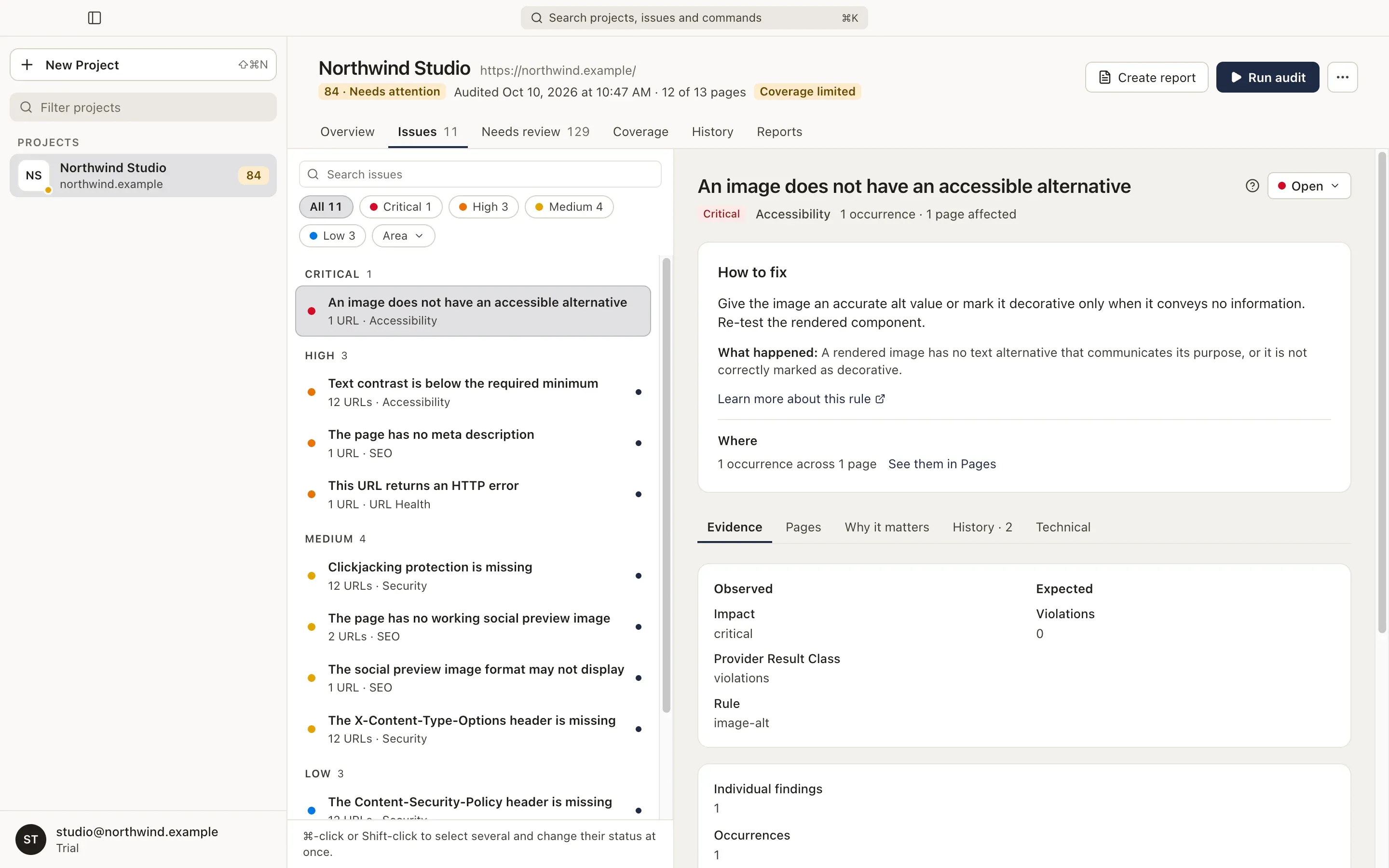
One issue is one rule. “Text contrast is below the required minimum” is one issue, however many pages and elements it affects. Fix it once in a shared template or style and every page is fixed.
The list
Section titled “The list”Issues are grouped and ordered:
- Critical, High, Medium, Low: open issues this audit found.
- Added from Needs review: issues you created from Needs review.
- Not detected in this audit: issues still Open from an earlier audit that this audit didn’t find.
- Closed and Not relevant.
Each row shows the title, how many pages it affects and its area. A dot marks an issue you haven’t opened yet. A chip shows when the issue is New, Reappeared or Resolved since the previous audit.
Use ↑ and ↓ to move through the list and Space to scroll the detail.
Search and filters
Section titled “Search and filters”- Search issues (⌘F, Ctrl+F) finds issues by title, description, fix, area, rule, page address, page title or CSS selector.
- Severity chips show only Critical, High, Medium or Low issues. The number on each chip counts open issues.
- Area shows the issues of one or more areas.
- Change shows only issues that are New, Still detected, Resolved, Reappeared or Inconclusive since the previous audit.
Search and filters combine. When nothing matches, Damdit offers Clear Search and Clear Filters.
Change an issue’s status
Section titled “Change an issue’s status”An issue is Open, Closed or Not relevant. See Issue statuses for what each means.
- In the issue’s detail, use the status menu next to its title.
- Right-click an issue in the list to set its status.
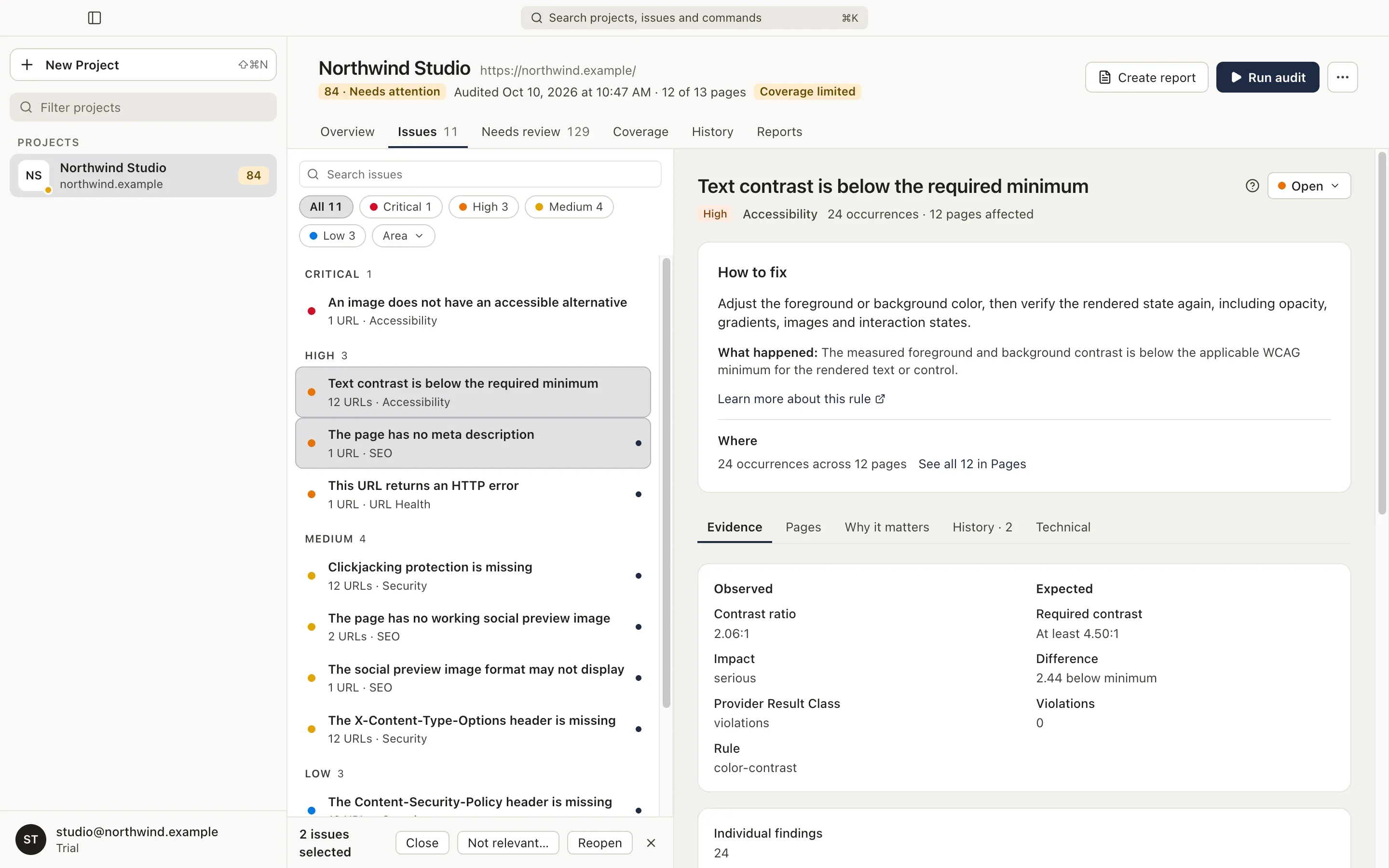
- ⌘-click (Ctrl-click) or Shift-click several issues, then use Close, Not relevant… or Reopen in the bar that appears.
Statuses can be changed only on the current audit. An older audit is read-only.
Mark an issue as Not relevant
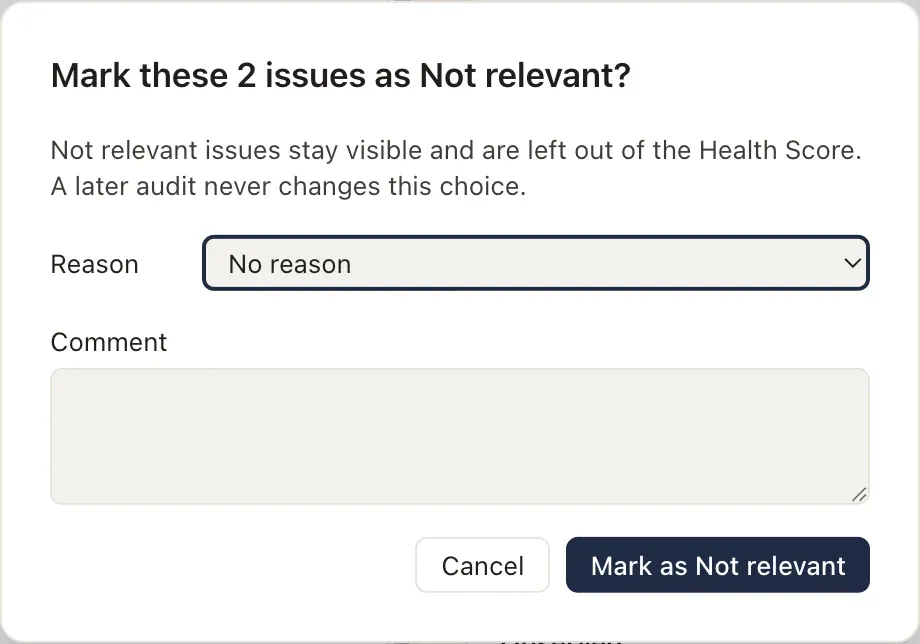
Section titled “Mark an issue as Not relevant”Not relevant keeps the issue visible but leaves it out of the health score, in this audit and every later one. No audit changes it back. Choose a reason, if you like, and add a comment:
- Accepted risk
- False positive
- Outside project scope
- Controlled by a third party
- Temporary exception
- Other