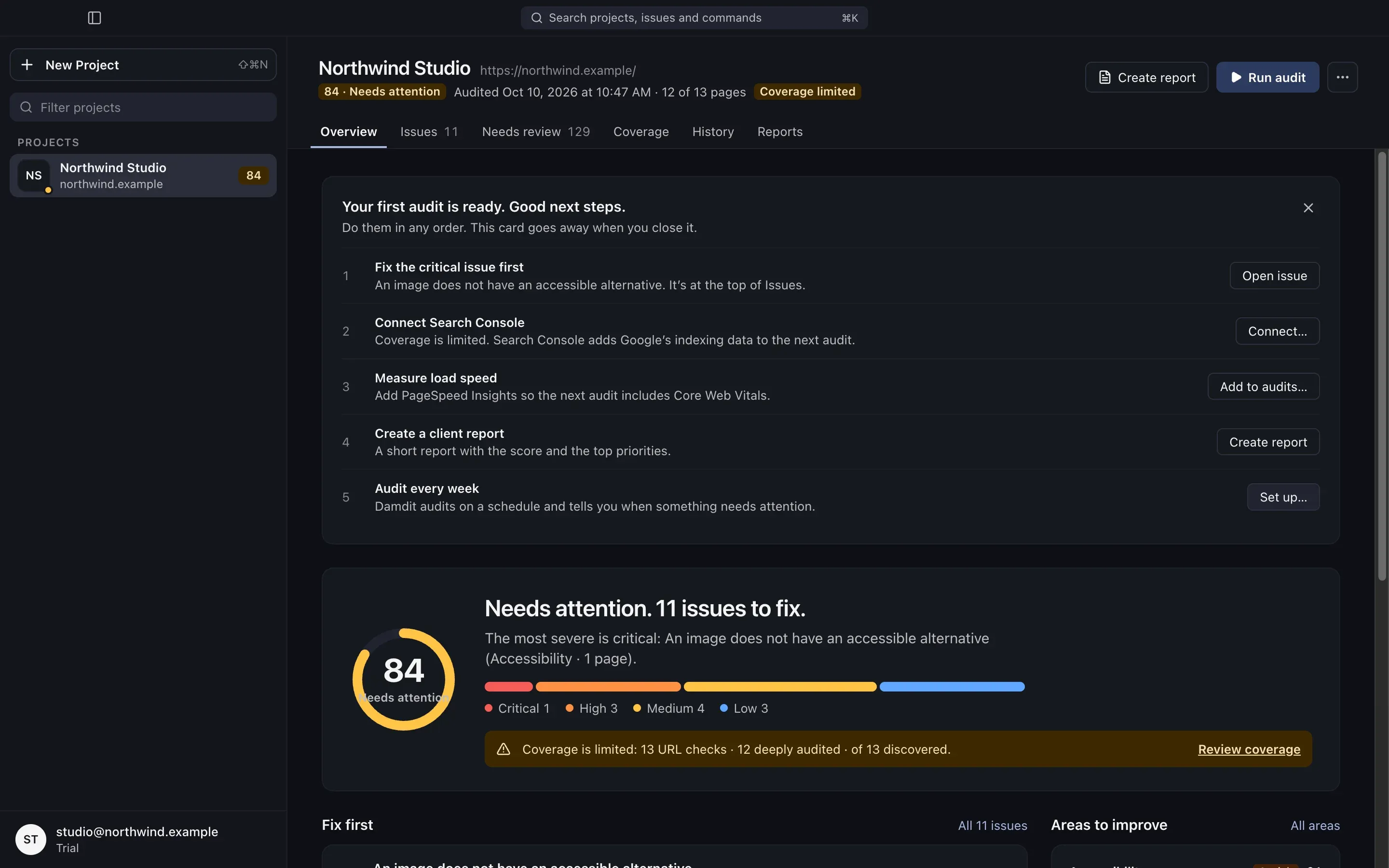

The Damdit window
Damdit has one window. Your projects are on the left; the project you selected fills the rest, with its actions at the top and its tabs below.
Projects sidebar
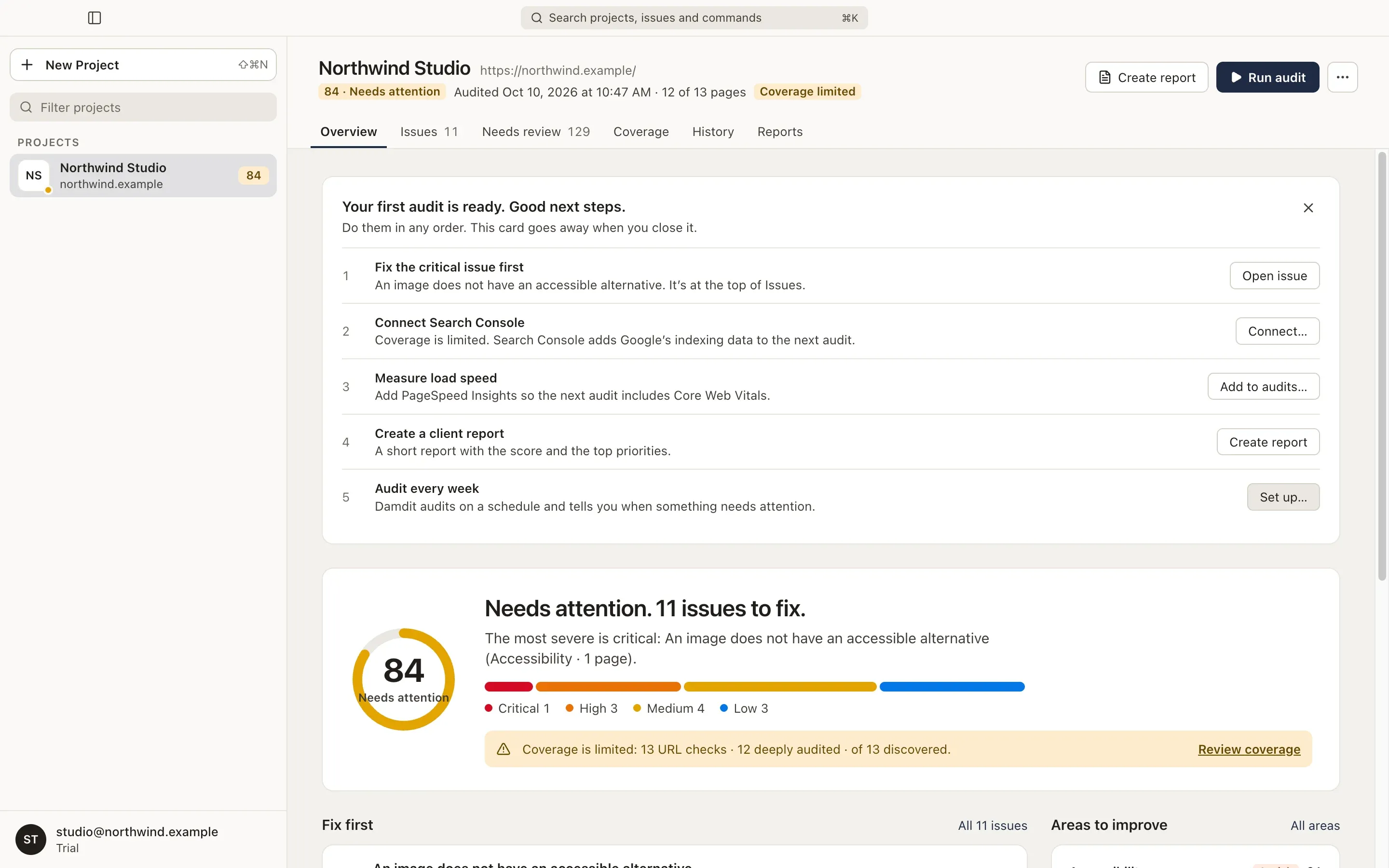
Section titled “Projects sidebar”The sidebar lists every project. Pinned projects come first, in the order you pinned them; the others follow alphabetically.
Each project shows its name, its address and its latest score. The score’s colour follows the score band:
| Score | Band |
|---|---|
| 90–100 | Good |
| 70–89 | Needs attention |
| 40–69 | At risk |
| 0–39 | Critical |
While an audit runs, the project shows how many pages are done, for example 12 of 48. Other states are Preparing, Plan ready and Ready to start. A dot in the accent colour means a new audit result you haven’t opened yet.
- New Project (⇧⌘N, Ctrl+Shift+N on Windows and Linux) adds a website.
- Filter projects finds a project by name or address.
- Right-click a project to open it, pin or unpin it, or open its Project settings.
- ↑ and ↓ move between projects.
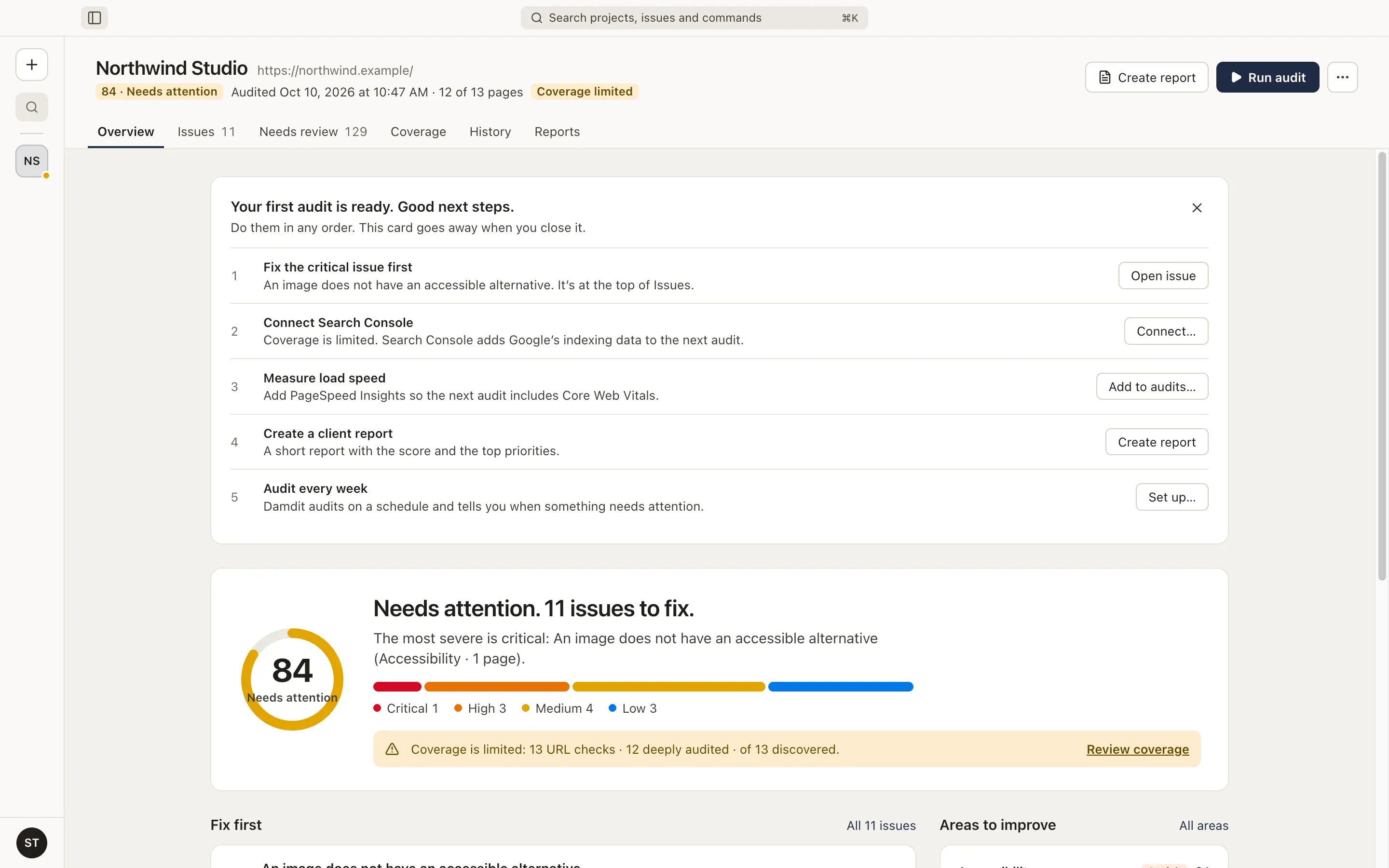
Collapse the sidebar
Section titled “Collapse the sidebar”Choose the sidebar button in the title bar or press ⌃⌘S (Ctrl+Shift+S) to collapse the sidebar to project icons. Hover an icon to see the project’s name, address and status. You can also drag the sidebar’s edge: narrower than its minimum width, it collapses.
Account
Section titled “Account”Your account sits at the bottom of the sidebar, with your licence status. Its menu opens Settings, your account, subscription and devices, and signs you out. Signing out keeps your projects, reports and audit history on this computer.
Project header
Section titled “Project header”The header names the project and the audit you are looking at.
- The score with its band, when the audit has one.
- Audited and the date, and how many pages were audited, for example 48 of 48 pages. page limit is added when Damdit’s 500-page limit left pages out.
- Coverage limited when part of the audit could not be measured. See Coverage.
- Historical when you are looking at an older audit. A banner then offers View Current Audit.
Its actions:
- Run audit (⌘R, Ctrl+R) starts a new audit. If the project has a staging or local address, Damdit asks which one to audit. See Environments.
- Create report (⇧⌘E, Ctrl+Shift+E) opens Reports. It appears once the project has a completed audit.
- ⋯ opens Project settings and pins or unpins the project.
Only one audit runs at a time, across all projects. While another project is being audited, Run audit is unavailable.
| Tab | Shortcut | What it shows |
|---|---|---|
| Overview | ⌘1 | The score, what to fix first and what changed |
| Issues | ⌘2 | Every issue, by severity, with how to fix it |
| Needs review | ⌘3 | Observations that need a person’s judgement |
| Coverage | ⌘4 | What the audit could and could not measure |
| History | ⌘5 | Earlier audits and what changed between them |
| Reports | ⌘6 | Reports for clients, developers and AI tools |
On Windows and Linux, use Ctrl instead of ⌘. Before a project’s first audit, only Overview is available.
While an audit runs, the other tabs show a strip with its progress, a button to open the run and Cancel….
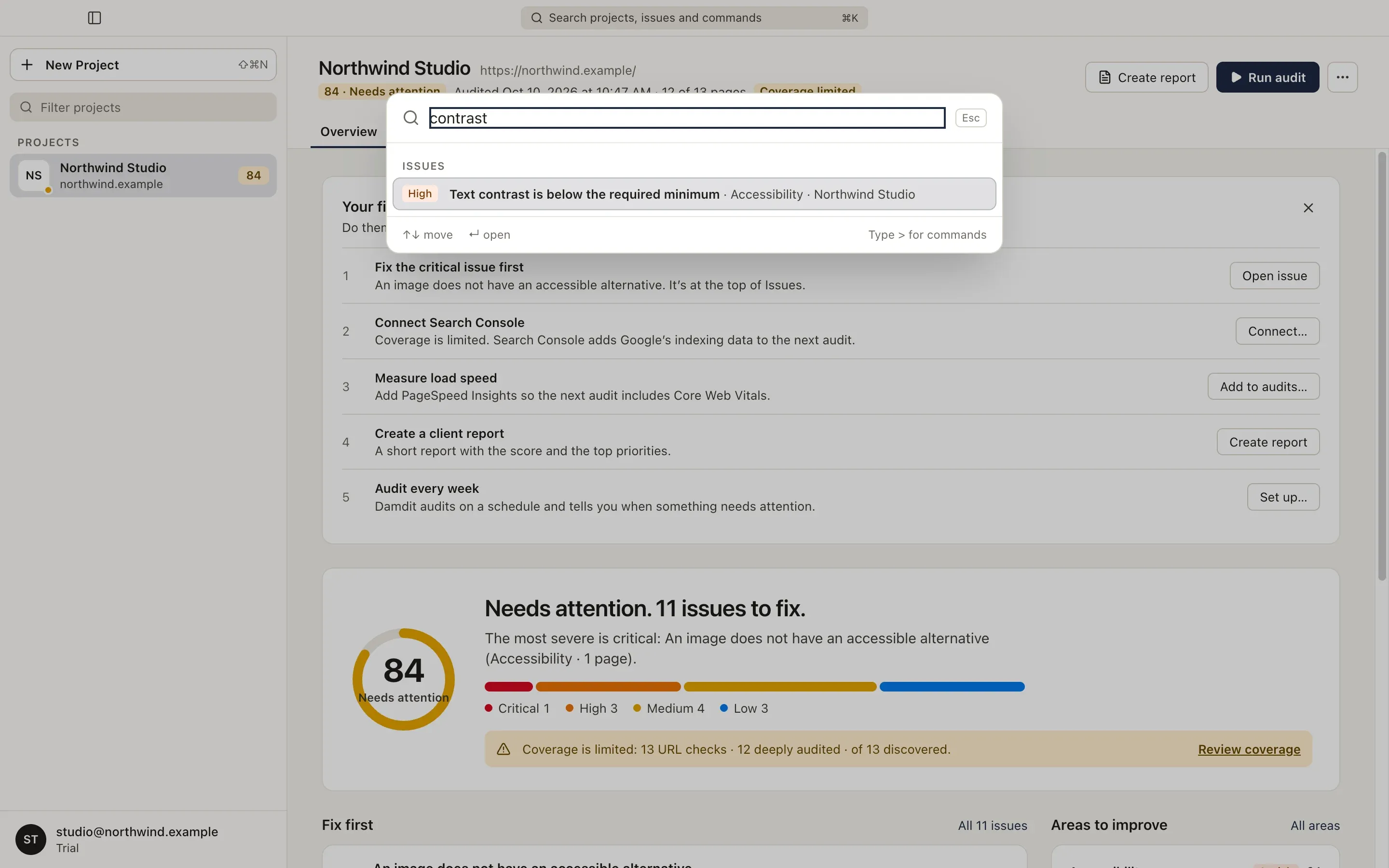
Command palette
Section titled “Command palette”Press ⌘K (Ctrl+K) or click the search field in the title bar. The palette finds:
- Issues of the audit you are looking at, by title or area,
- Needs review checks with something left to review,
- Commands, such as Run audit, Create report, Go to a tab, New Project and Settings,
- Projects, by name or address.
Use ↑ and ↓ to move and Return to open. Type > first to see only commands.
Light and dark mode
Section titled “Light and dark mode”Damdit follows your system’s appearance. To choose Light or Dark for Damdit only, go to Settings → General → Appearance.