

Licence and trial
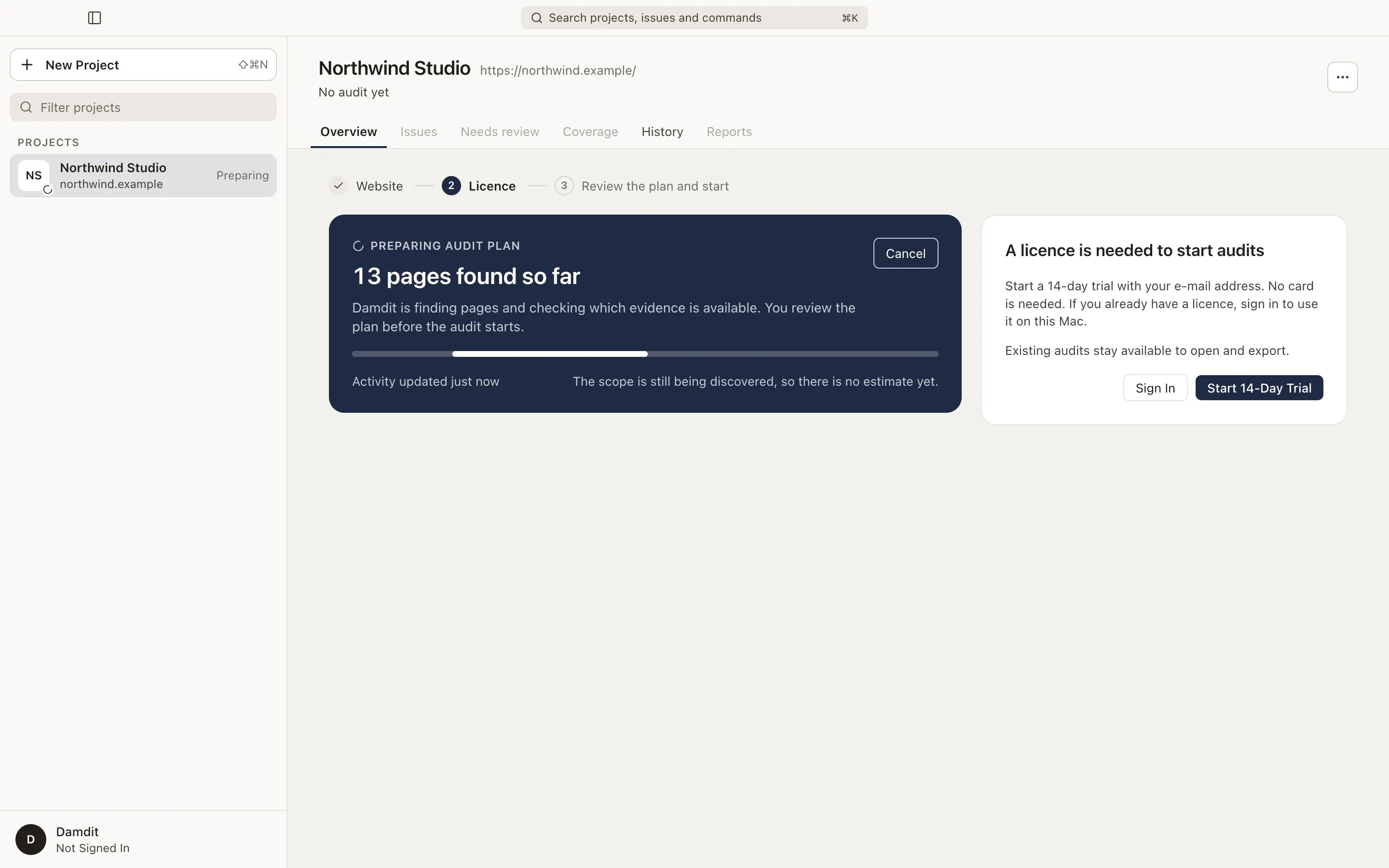
Starting a new audit needs a licence. Audits you already have stay available to open and export in every licence state.
Start a trial or sign in
Section titled “Start a trial or sign in”The first time you start an audit, Damdit asks you to choose:
- Start 14-Day Trial: enter your e-mail address. No card is needed.
- Sign In: if you already have a licence, enter the e-mail of your Damdit account.
Damdit sends a six-digit code to the address. Enter it in Damdit; the code is valid for 15 minutes. Send New Code sends another.
You can also sign in from Settings → Account → Sign In….
Licence states
Section titled “Licence states”Your licence state is shown at the bottom of the sidebar and in Settings → Account.
| State | What it means |
|---|---|
| Trial | Your trial is running. New audits work until the date shown. |
| Active | New audits work on this computer. |
| Payment Needed | The last payment didn’t go through. New audits keep working until the date shown; update the payment method on the web. |
| Cancelled | Your subscription ends on the date shown. New audits work until then. |
| Expired, No Active Licence | Existing audits and reports stay available. New audits need an active licence. |
| Not Signed In | Sign in or start a trial to run new audits. |
| Read-only | Damdit couldn’t check the licence for too long, or your computer’s clock is wrong. See below. |
Working offline
Section titled “Working offline”Damdit checks your licence at launch and about once a day. While the licence is valid, audits work without a connection to Damdit’s account service.
If Damdit can’t check the licence for 30 days, new audits pause until you connect to the internet. If your computer’s clock is set earlier than the last licence check, correct the date and time, then connect to the internet. Existing audits stay available either way.
Devices
Section titled “Devices”A licence can be active on up to two computers. Projects and audits stay on each computer; they are not synced. To move your licence to another computer, remove one in Settings → Account → Manage Devices…, which opens your account on the web.
Subscription
Section titled “Subscription”Plan, payment method, invoices and cancellation are managed on the web: Settings → Account → Manage Subscription… or Manage subscription in the account menu.
Sign out
Section titled “Sign out”Settings → Account → Sign Out… signs you out on this computer. Projects, reports and audit history stay. To start new audits again, sign in.