

Project settings
Open Project settings from the ⋯ menu in the project header, by right-clicking a project in the sidebar, or from the command palette. Changes apply to the next audit; existing audits and reports don’t change. Choose Save to keep them.
Project Details
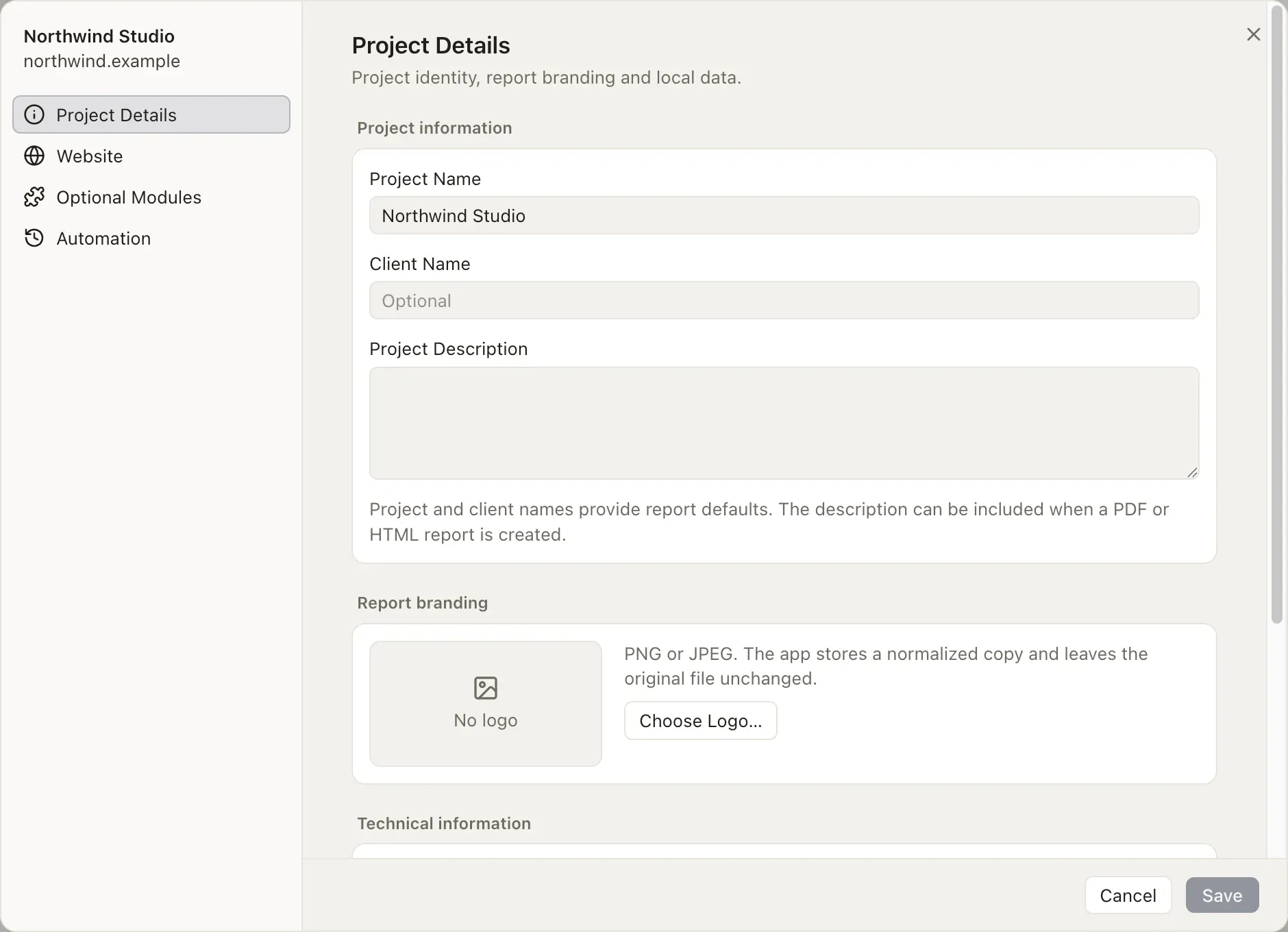
Section titled “Project Details”- Project Name, Client Name and Project Description: defaults for reports. The description can be included in PDF and HTML reports.
- Report branding: a PNG or JPEG logo for PDF and HTML reports. Damdit keeps its own copy; your file isn’t changed.
- Project ID, for support.
- Delete Project… removes the project, its audit history, findings, evidence, reports and credentials from this computer. Files you exported elsewhere, the website and connected services are not affected.
Website
Section titled “Website”The project’s addresses: Production URL, Staging URL and Local URL, and the Default audit target. Production and staging must use HTTPS; a local address is one on this computer. Keep at least one address. See Production, staging and local.
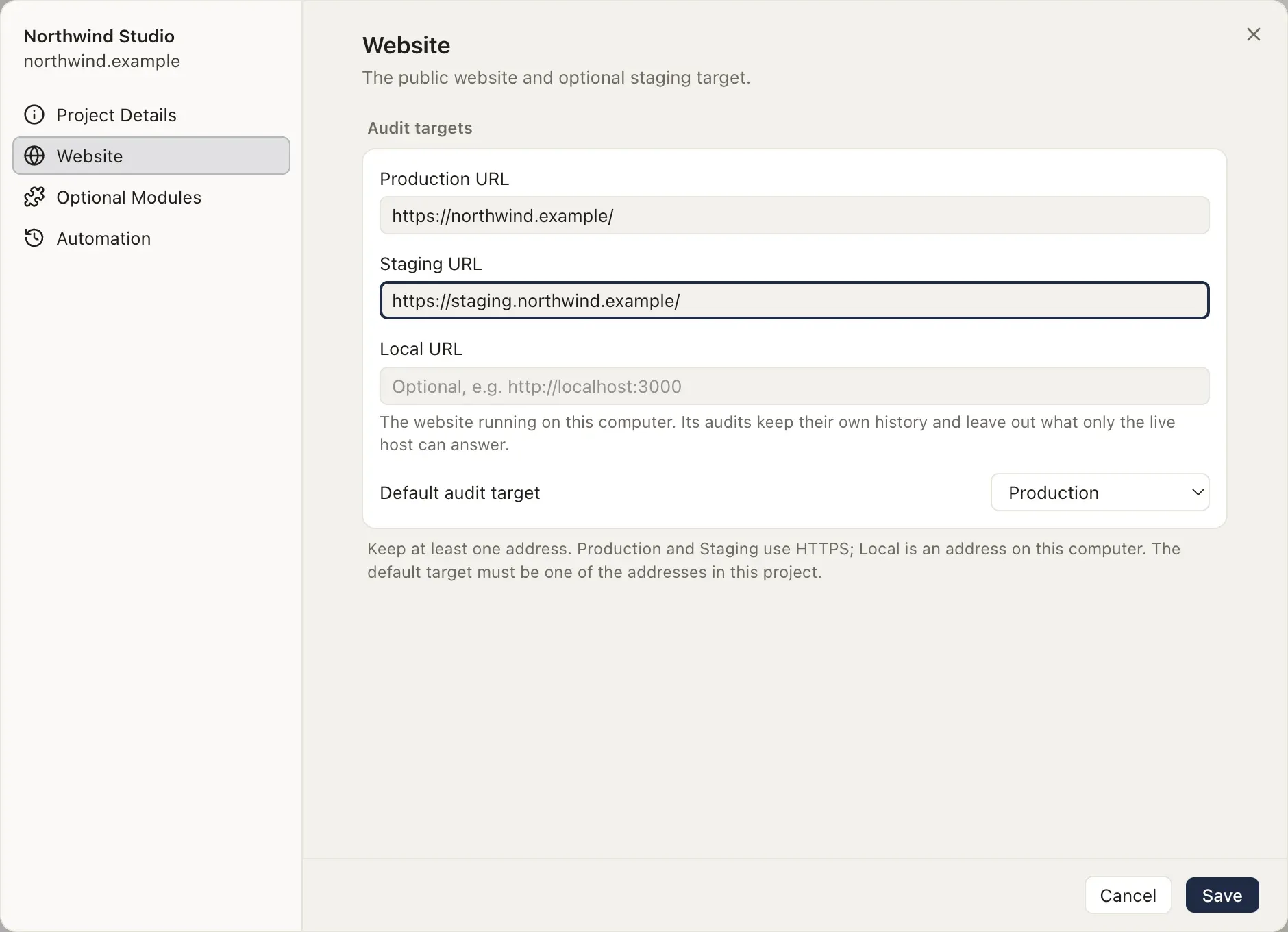
When you change the production or staging address, Damdit asks Is this the same website at a new address?
- Keep This Project keeps the history together and notes the change of address for later comparisons.
- Create New Project starts a separate project with its own history.
After an address change, scheduled audits and audits started by AI tools pause until you run one audit of the new address in the app and start it after reviewing the plan.
Optional Modules
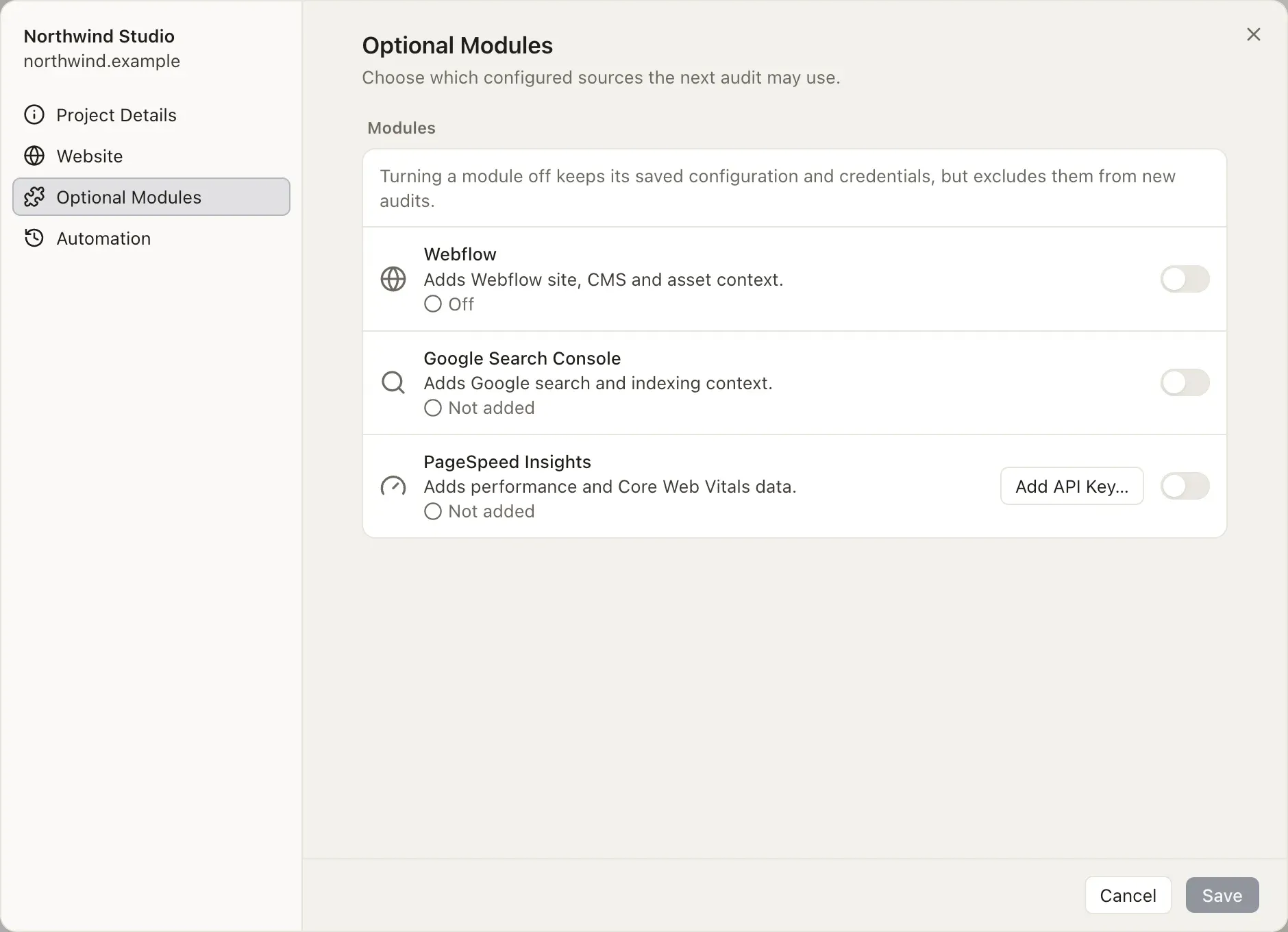
Section titled “Optional Modules”Three sources add evidence the public website alone can’t give. Each can be turned off without losing its settings.
Webflow
Section titled “Webflow”For websites built in Webflow: CMS collections, items, assets and site settings straight from Webflow.
- Create a site API token in Webflow with read access to Sites, Pages, CMS and Assets.
- Choose Connect…, paste the token and choose Connect.
- Choose the site in Webflow site.
Damdit checks the token before it stores it. A new token replaces the stored one only after it’s verified. Remove Access… removes the token.
Google Search Console
Section titled “Google Search Console”Which pages Google has indexed or excluded, as audit evidence.
- Choose Connect Google Account…. Sign-in opens in your browser; Damdit asks for read-only access.
- Choose the Search Console property that matches the website and choose Use Selected Website.
Change Property…, Pause and Disconnect… are available once connected. See what Google receives.
PageSpeed Insights
Section titled “PageSpeed Insights”Load speed and Core Web Vitals, measured by Google. Choose Add to Audits. A free API key makes it reliable: see PageSpeed Insights key. With PageSpeed on, the addresses of audited pages are sent from your computer to Google during the audit.
Automation
Section titled “Automation”Scheduled audits and their notifications. See Scheduled audits.
Credentials
Section titled “Credentials”Tokens and keys are stored in your system’s secure storage (Keychain on macOS, the Windows credential protection, the Secret Service on Linux), never in plain files, and are left out of data exports.