

History
History (⌘5, Ctrl+5) lists every audit of the project, shows how the score and the issues developed, and explains what changed in each audit.
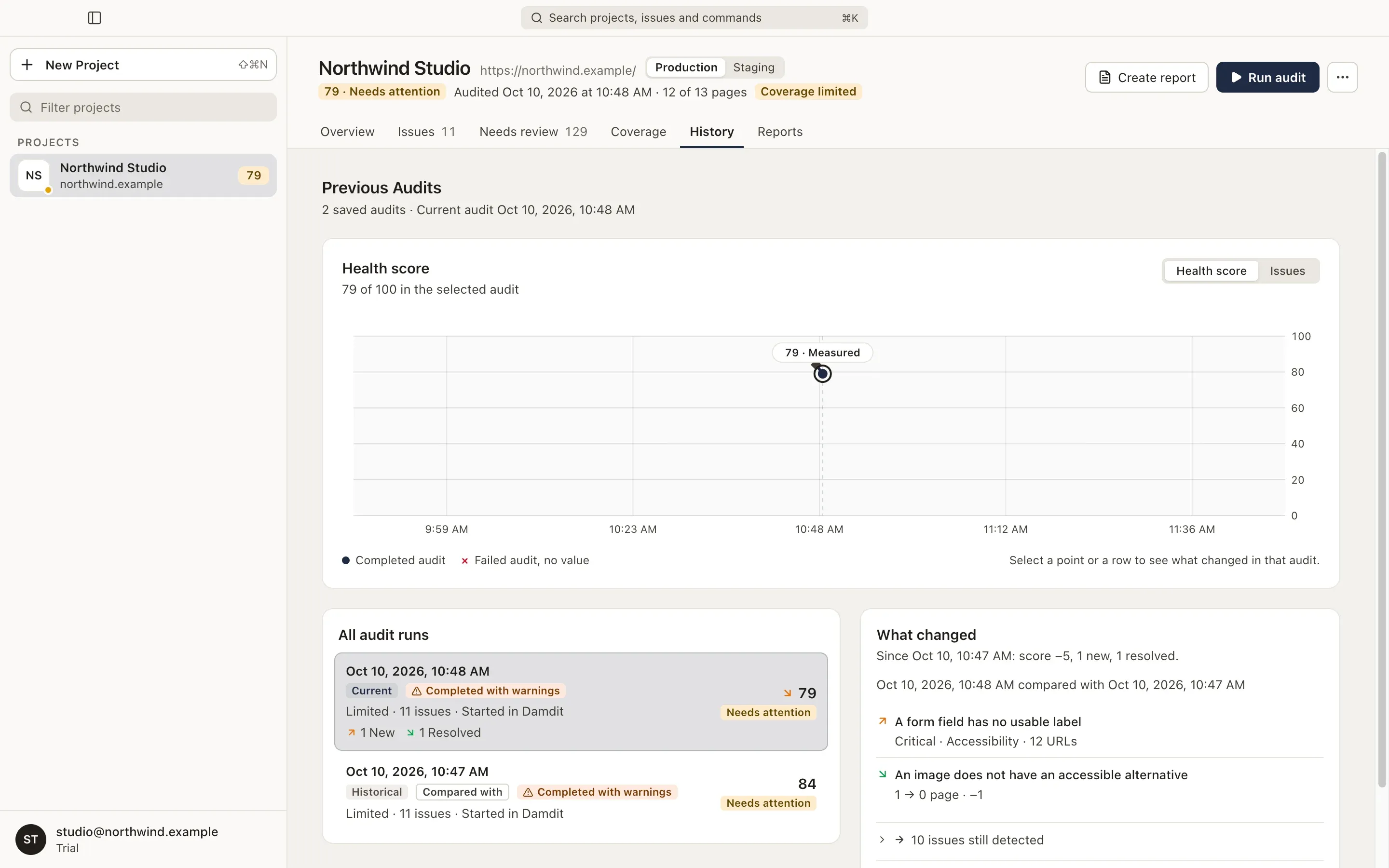
The chart
Section titled “The chart”Switch between:
- Health score: the score of each completed audit. The current audit is highlighted. A dashed line marks where the audited address, the modules or the coverage changed, and Scoring method changed marks where scores can’t be compared.
- Issues: the issues of each audit, stacked by severity.
Choose a point or a bar to select that audit.
All audit runs
Section titled “All audit runs”Each row shows the date, Current or Historical, the audit’s status when it wasn’t a plain completion (Completed with warnings, Failed, Cancelled), its coverage, the number of issues, what started it and its changes against the previous audit. A run can be started in Damdit, from the command line, by an AI tool or on a schedule.
Double-click an audit, or select it and press Return, to open it. Opening an older audit shows it read-only, with a Historical badge; View Current Audit takes you back.
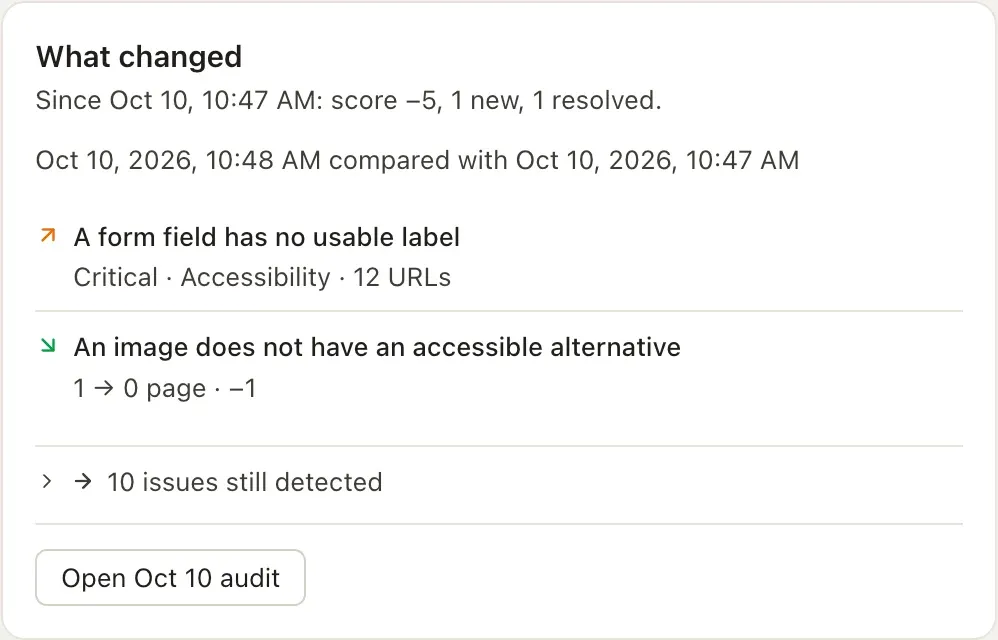
What changed
Section titled “What changed”For the selected audit, Damdit compares it with the previous comparable audit and lists the changed issues:
| Change | Meaning |
|---|---|
| New | Found for the first time. |
| Resolved | No longer found. This isn’t proof of a repair, only that the audit didn’t detect it. |
| Reappeared | Found again after an audit had confirmed it absent. |
| Inconclusive | Couldn’t be compared, for example because the check changed or a page wasn’t checked. |
| Still detected | Found in both audits. This is not a change. |
Choose an issue to open it in that audit.
Some audits can’t be compared: an audit saved before Damdit kept issue history, or two audits measured with different audit engines. When Damdit’s checks were updated between two audits, it says so instead of classifying the changes. See Comparing audits.